Customers
The Customers page shows all customers (debiteuren / klanten) you have invoiced in Shillinq. Like vendors, customer records are Nextcloud Contacts enriched with financial details such as payment terms and Peppol addresses.
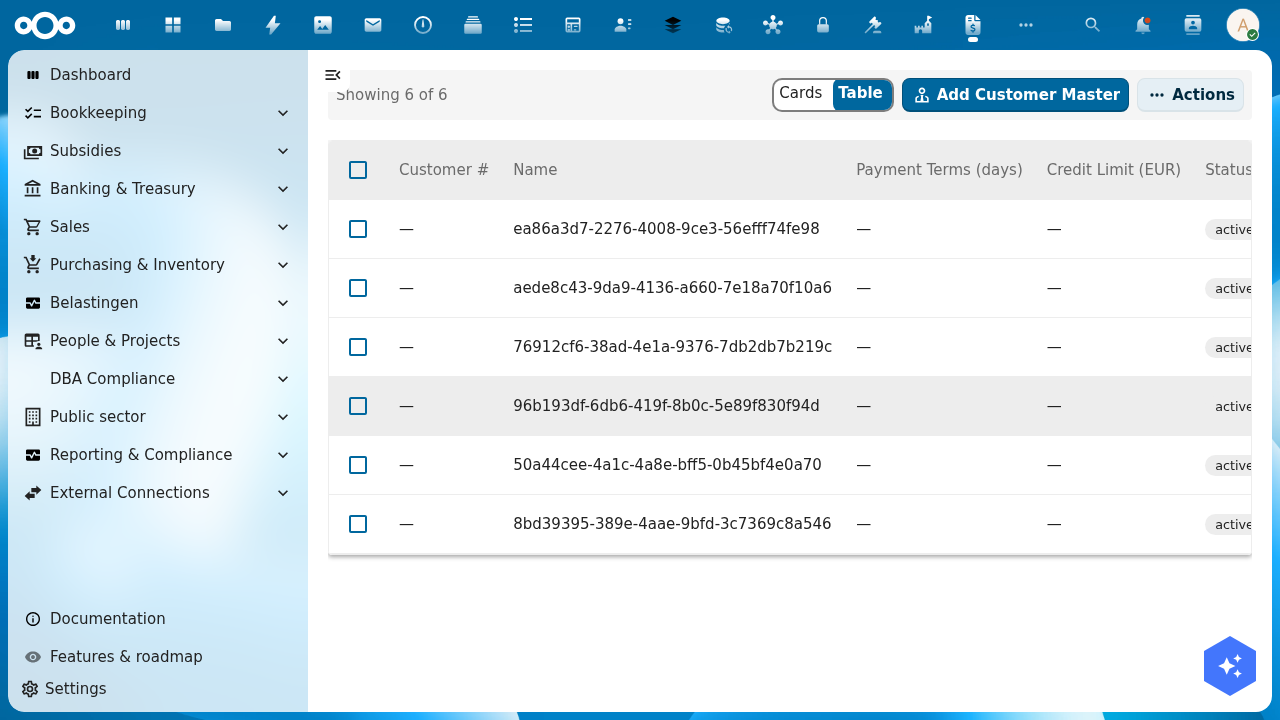
How customer data works
When you create an invoice and select a customer, Shillinq:
- Looks up the contact in Nextcloud Contacts.
- Stores Shillinq-specific settings (payment terms, Peppol ID, invoice number prefix) alongside the contact.
- Uses the contact's name, address, and VAT number on generated invoices and credit notes.
Manage contact details (name, address) in Nextcloud Contacts. Manage financial settings (payment terms, e-invoicing setup) in Shillinq.
Add a customer
Customers are created implicitly when you first invoice a contact. To pre-configure a customer's financial settings before their first invoice:
- Go to Bookkeeping → Customers.
- Click + Add customer.
- Search for and select a Nextcloud Contact.
- Configure:
paymentTerms— default number of days to pay (e.g. 30)defaultGlAccount— the revenue account to pre-fill on new invoices (e.g.80000for professional services)currency— default currency for invoices to this customervatNumber— customer's VAT number (required for intra-EU zero-rate invoicing)peppolId— Peppol receiver ID (for Dutch government and Peppol-registered customers)invoiceDelivery— preferred delivery method: email, Peppol, or manual download
- Save.
Customer balance
Click any customer row to open their detail view. The Balance tab shows:
- Total invoices sent (lifetime)
- Currently outstanding invoices (open receivables)
- Average payment duration (how many days on average this customer pays)
- Oldest open invoice (helps you decide when to start a dunning process)
Dunning (payment reminders)
When a customer is overdue, Shillinq can send payment reminders automatically. Configure the reminder schedule in Settings → Dunning ladders and assign a ladder to the customer on their detail page.
Related
- Create an invoice — send a customer invoice
- Accounts Receivable — the full AR workflow
- Bank Reconciliation — match received payments to invoices